> For the complete documentation index, see [llms.txt](https://help.sipgate.de/llms.txt). Markdown versions of documentation pages are available by appending `.md` to page URLs; this page is available as [Markdown](https://help.sipgate.de/conversation-intelligence/conversation-intelligence-en/manage-custom-fields.md).
# Manage custom fields
With Custom Fields, you define which content the AI collects from your conversations and stores in the Data Hub.
## What are custom fields?
Custom fields are fields that you define centrally as an admin. After each conversation, the AI evaluates the transcript and extracts the content you described in the fields, for example a reason for the call, a customer number, or a topic. Conversation Intelligence stores the results in a structured way in a separate column in the [Data Hub](broken://pages/a0e0f1e9db1351adb93aa529be5bc4743ec2d631).
If the AI does not find a matching value in a conversation, the field remains empty for that call. No values are invented.
{% hint style="info" %}
Prerequisite: You have admin rights, and Conversation Intelligence is enabled for the channel (see [Getting started](broken://pages/78fa5a89b736f2794b28e51a6b4b0a8a1e942b02)).
{% endhint %}
## Which predefined fields are there?
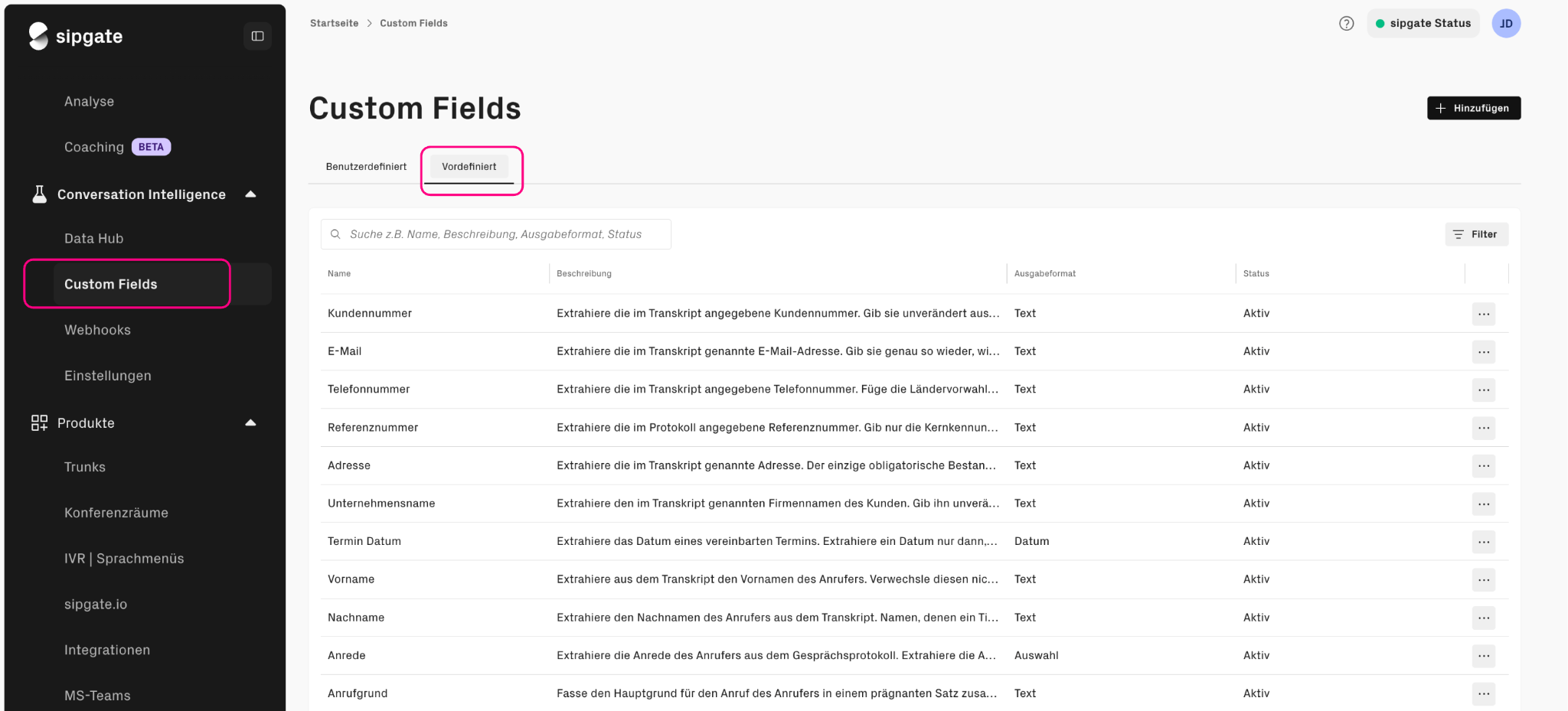
There are predefined custom fields that are collected immediately as soon as Conversation Intelligence is activated. These include, among others, first name, last name, salutation, reason for the call, customer number, reference number, email, phone number, company name, address, appointment date, appointment time, topics, and summary.
Predefined fields cannot be edited. However, you can disable them via the menu (three dots) in the row for the field if they do not fit your use case.
## What output formats are available?
Depending on what type of information you want to collect from a conversation, choose one of the following output formats:
| Output format | Description |
| ------------- | ---------------------------------------------------------------------------------------------------------------------------- |
| **Text** | Captures a free-text answer, e.g. a short summary or a verbatim quote from the conversation. |
| **Number** | Captures a numeric value without an attached unit, e.g. a mentioned contract term or an amount. |
| **Date** | Captures a date mentioned in the conversation, e.g. an agreed callback date. |
| **Time** | Captures a time mentioned in the conversation, e.g. the desired time for a callback. |
| **Yes/No** | Captures a binary assessment, e.g. whether a certain issue came up in the conversation or not. |
| **Selection** | Assigns the conversation to one of the predefined options. You define the possible options yourself when creating the field. |
## How do I create my own custom field?
In addition to the predefined fields, you can create user-defined custom fields tailored to your use case, business model, industry, or team.
{% stepper %}
{% step %}
## Add field
Open **Conversation Intelligence → Custom Fields** and click **Add**.
{% endstep %}
{% step %}
## Name the field
Name the field.
{% endstep %}
{% step %}
## Describe prompt
Describe in a prompt how the field content should be collected.
{% endstep %}
{% step %}
## Choose output format
Choose the output format. If you choose the output format **Selection** choose, also describe the possible options.
{% endstep %}
{% step %}
## Save field
Save the field.
{% endstep %}
{% endstepper %}
The field is active immediately and will be populated according to your definition starting with the next call. Calls that have already taken place will not be evaluated retroactively. If a call returns a result, the value is stored in a separate column in the Data Hub.
**Example**
* **Field name:** Interest
* **Field prompt:** "Did the caller show interest in a specific feature?"
* **Output format:** Selection, with the options "Transcript", "Custom Fields", "Webhooks", and "No interest"
## How do I formulate a good field prompt?
The more precise the prompt, the more reliable the result:
* State the expected format, e.g. "Output the customer number as a plain number."
* Provide example values.
* Describe edge cases, e.g. "If no customer number is mentioned, output nothing."
* Avoid vague wording such as "Why is the customer calling?" Better: "State the reason for the call in no more than five words."
## In which language are custom fields output?
The results of your custom fields are output in a language that you set in the settings. To do this, open **Conversation Intelligence → settings** and select in the section **Output language** section at **Language of the custom fields** a fixed language or **Use transcript language**. Existing results in the Data Hub remain in the previous language.
## How do I edit, deactivate, or delete a field?
* **Disable:** Via the menu (three dots) in the row for the field. The field is then no longer collected. You can reactivate deactivated fields at any time.
* **Editing and deleting:** Only possible for user-defined fields. Deleting them will cause the collected values to be lost.
## What do I need to consider for my own custom fields?
{% hint style="warning" %}
If you define your own custom fields, you are solely responsible for ensuring that they comply with applicable legal requirements, especially data protection and labor law regulations. Avoid fields that allow conclusions to be drawn about the individual performance of individual employees. More on this under [Data protection](broken://pages/d161abd7c6a8a5b0cd0efcb562c622e08619096f).
{% endhint %}
---
# Agent Instructions
This documentation is published with GitBook. GitBook is the documentation platform designed so that both humans and AI agents can read, navigate, and reason over technical content effectively. Learn more at gitbook.com.
## Querying This Documentation
If you need additional information that is not directly available in this page, you can query the documentation by asking a question.
Perform an HTTP GET request on the following URL with the `ask` and `goal` query parameters:
```
GET https://help.sipgate.de/conversation-intelligence/conversation-intelligence-en/manage-custom-fields.md?ask=&goal=
```
`ask` is the immediate question: it should be specific, self-contained, and written in natural language.
`goal` is what the user is ultimately trying to achieve, the reason they need the answer. Sharing it helps GitBook give you a better, more relevant answer. A goal is most helpful when it describes the outcome the user wants rather than restating the question. For example, with `ask=how do I create an API token`, a goal like `automate deployments from our CI pipeline` lets GitBook tailor the answer to that use case.
The response will contain a direct answer to the question and relevant excerpts and sources from the documentation.
Use this mechanism when the answer is not explicitly present in the current page, you need clarification or additional context, or you want to retrieve related documentation sections.