> For the complete documentation index, see [llms.txt](https://help.sipgate.de/llms.txt). Markdown versions of documentation pages are available by appending `.md` to page URLs; this page is available as [Markdown](https://help.sipgate.de/contact-center/en/readme.md).
# Getting started
Overview of the sipgate Contact Center – features, prerequisites, and initial setup steps for admins.
#### What is the sipgate Contact Center?
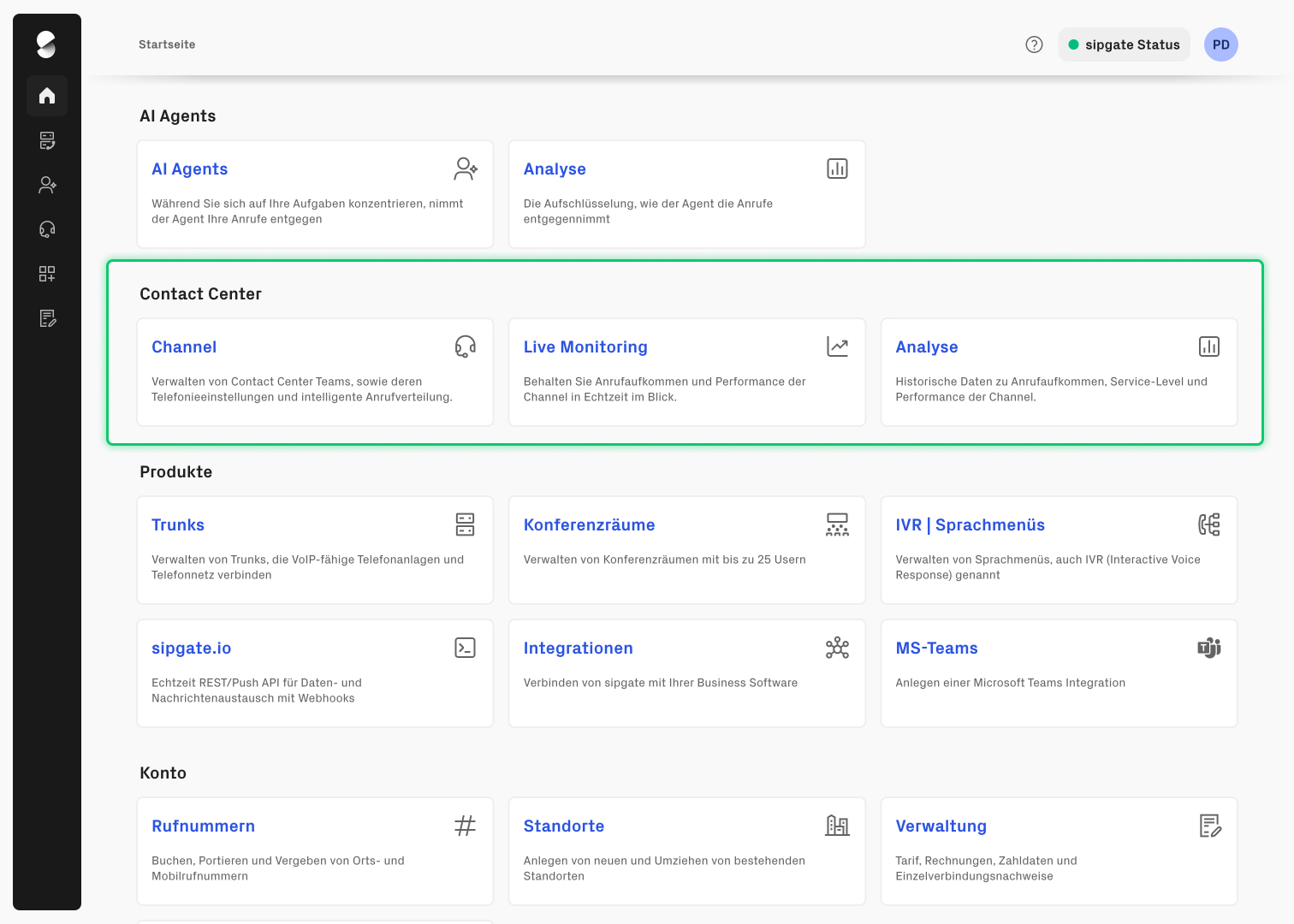
The sipgate Contact Center is a fully integrated area within the sipgate cloud phone system that allows you to monitor and analyze the call volume of your inbound and outbound telephony. It is suitable for teams of 5 or more people with regular call volume. As an admin, you will see the Contact Center as a separate section on the homepage in the logged-in area.
The range of functions includes:
* Structured distribution of incoming calls to your team
* Configuration of service hours, queues, and announcements
* Real-time overview of team utilization in live monitoring
* Historical analyses for shift planning and service optimization
#### Requirements and tariffs
The Contact Center is available to all active accounts with a sipgate business S, sipgate business L, or sipgate business XL plan.
Important: The IVR functions are only included in the base plans sipgate business L and XL.
The advanced views in the desktop app are only available with sipgate App Premium.
#### How do I create a Contact Center channel?
A set up Contact Center channel is required to use a Contact Center. Each hotline or service team gets its own channel. Any number of Contact Center channels can be created.
To create a channel:
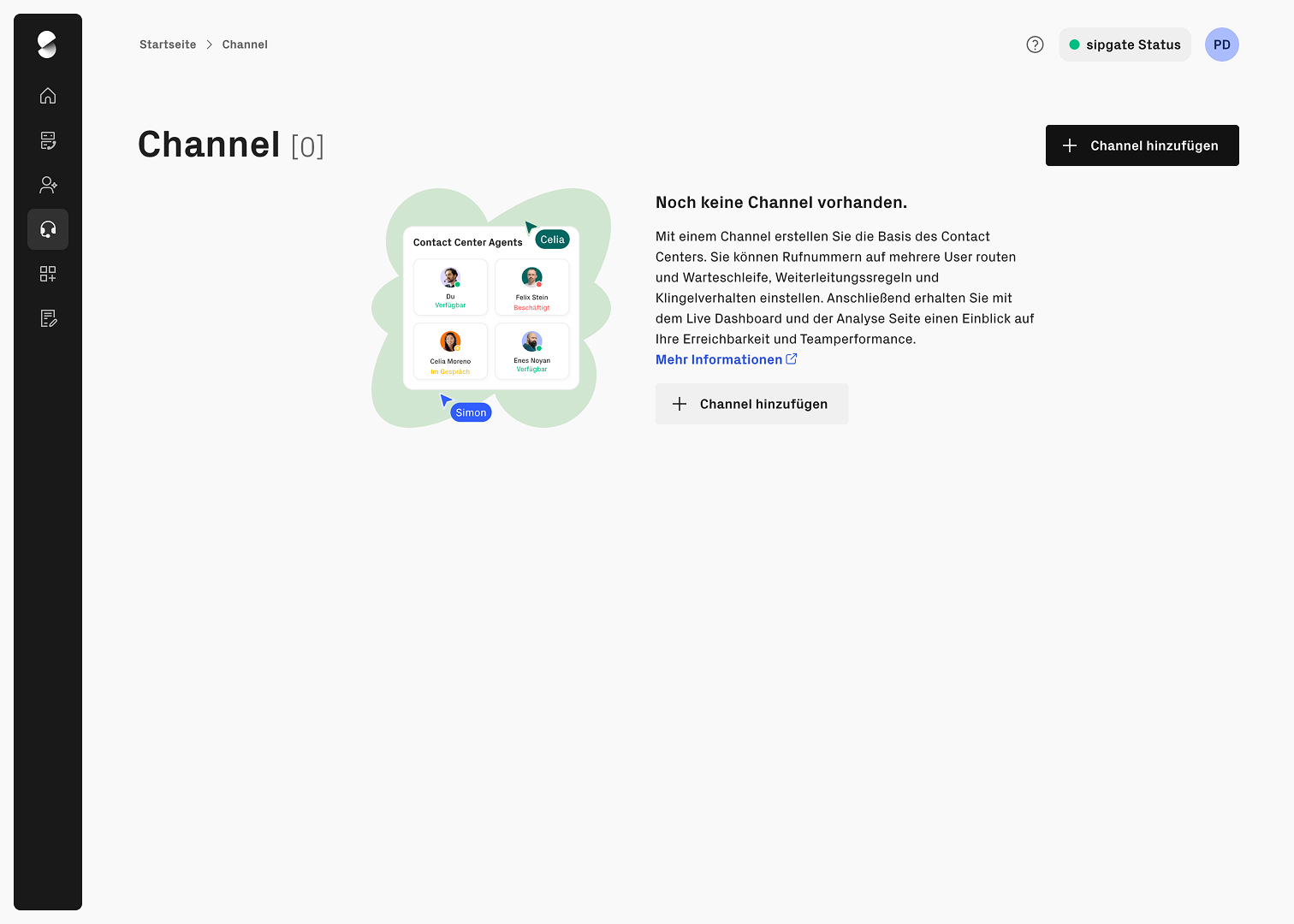
1. In the sipgate account, navigate to the “Channels” tile in the Contact Center section.
2. Click on **Add channel** .
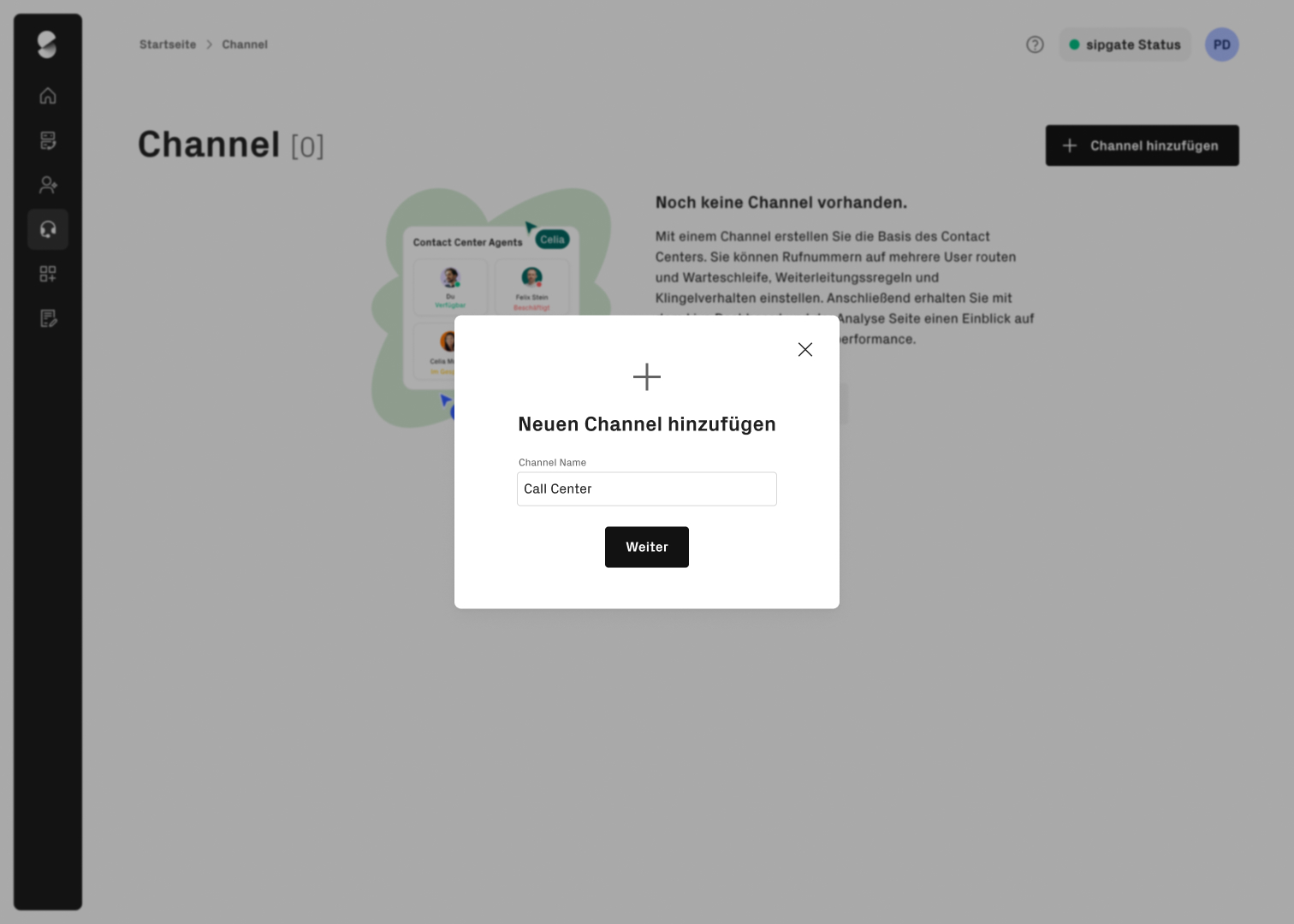
3. Assign a name (e.g. “Customer Service” or “Technical Support”).
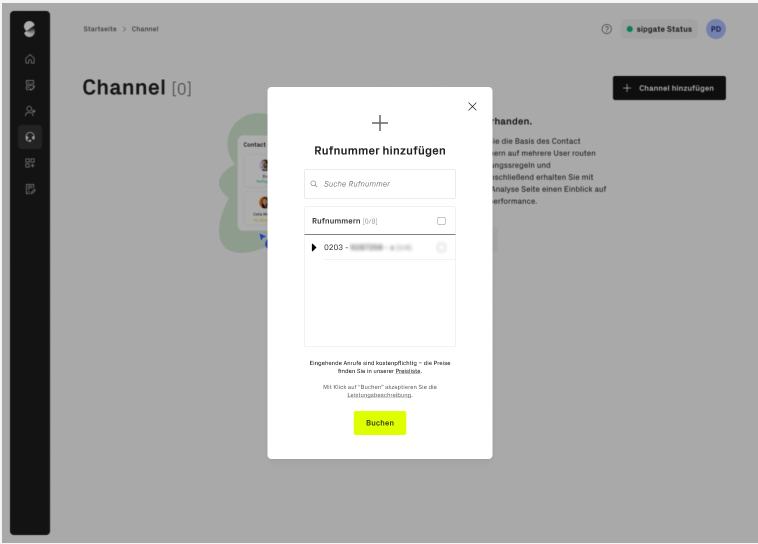
4. Assign one or more phone numbers or extensions. (optional)
5. Click on **Book**.
After the Contact Center channel has been created, you can adjust the routing settings accordingly or add agents to the Contact Center channel.
---
# Agent Instructions
This documentation is published with GitBook. GitBook is the documentation platform designed so that both humans and AI agents can read, navigate, and reason over technical content effectively. Learn more at gitbook.com.
## Querying This Documentation
If you need additional information that is not directly available in this page, you can query the documentation dynamically by asking a question.
Perform an HTTP GET request on the current page URL with the `ask` query parameter, and the optional `goal` query parameter:
```
GET https://help.sipgate.de/contact-center/en/readme.md?ask=&goal=
```
`ask` is the immediate question: it should be specific, self-contained, and written in natural language.
`goal` is optional and describes the broader end goal you are ultimately trying to accomplish on behalf of the user. GitBook uses it to tailor the answer towards what is most useful for that goal.
The response will contain a direct answer to the question and relevant excerpts and sources from the documentation.
Use this mechanism when the answer is not explicitly present in the current page, you need clarification or additional context, or you want to retrieve related documentation sections.