> For the complete documentation index, see [llms.txt](https://help.sipgate.de/llms.txt). Markdown versions of documentation pages are available by appending `.md` to page URLs; this page is available as [Markdown](https://help.sipgate.de/cloud-telefonanlage/en/using-sipgate/die-sipgate-app/wie-kann-ich-mit-der-sipgate-app-anrufe-weiterleitentransferieren.md).
# How can I forward/transfer calls with the sipgate app?
Forward or transfer calls in the sipgate app – here’s how call handoff works.
{% tabs %}
{% tab title="sipgate classic" %}
#### **How can you forward an incoming or outgoing call?**
Answer a call or start a new phone call. In the interface, click on **Transfer**.

In the next step, select one of your contacts or enter a phone number using the keypad to which you want to transfer the call. To initiate the transfer, click the green handset.

The target number should now take the call. Briefly explain the matter and transfer the caller with **Connect & leave**. Switch between caller and transfer destination using call swapping or start a three-way conference with **Conference**.\\

{% hint style="info" %}
**Note:** More than 3 participants are currently not possible.
{% endhint %}
The call is ended and the caller is connected with the target number. A short confirmation is shown.
**Important**: If a transfer fails during a call transfer and you hear the tone “Participant has left the call”, it will still be shown that you are in transfer mode. Cancelling the transfer would end the entire call. In this case, click the “Transfer” button again if you want to restart the transfer.
#### **Create a three-way conference in the sipgate app**
In the sipgate app, you can easily create a conference with three people. To do this, answer an incoming call and transfer it to another person/number. As soon as the third person has answered the call, click “Conference” so that all three calls are connected.
!\[2(1).png]\(../../.gitbook/assets/2(1) (3).png)
Alternatively, during a call, open the keypad and enter either \*3 followed by a speed dial or \*3 followed by a phone number. Confirm the transfer with # (\*3speed dial# or \*3phone number#). As soon as the call is answered, press \*5 to start the conference.
{% endtab %}
{% tab title="sipgate neo" %}
#### **How can you forward an incoming or outgoing call?**
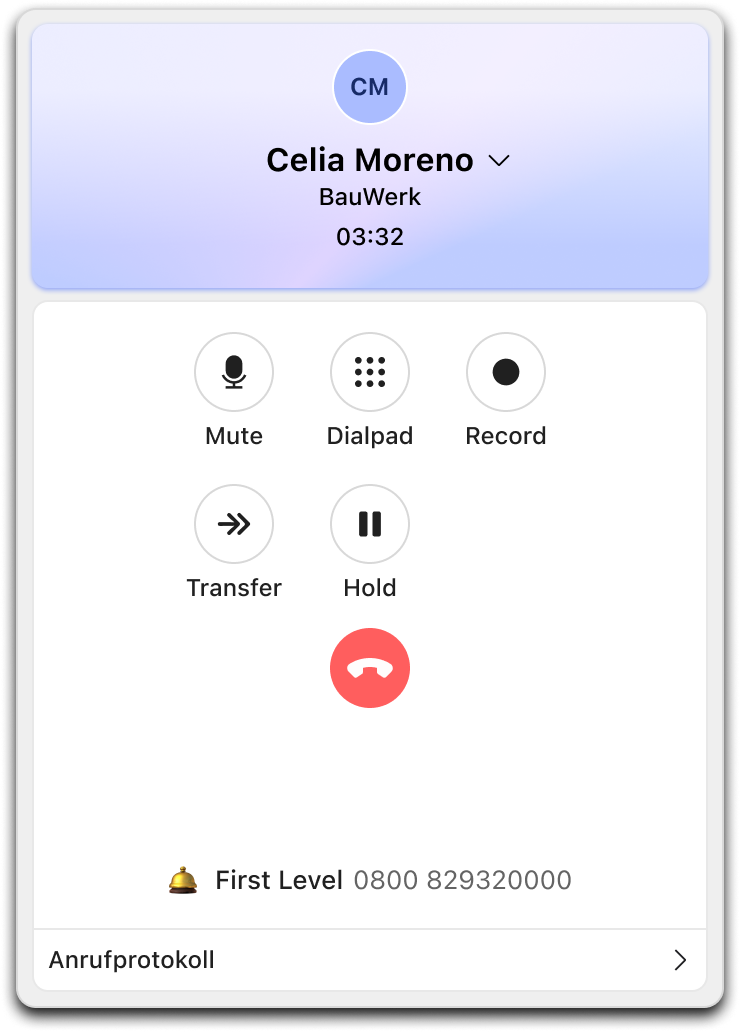
Answer a call or start a new conversation. Then click on **Transfer**.
Start transfer in an ongoing call
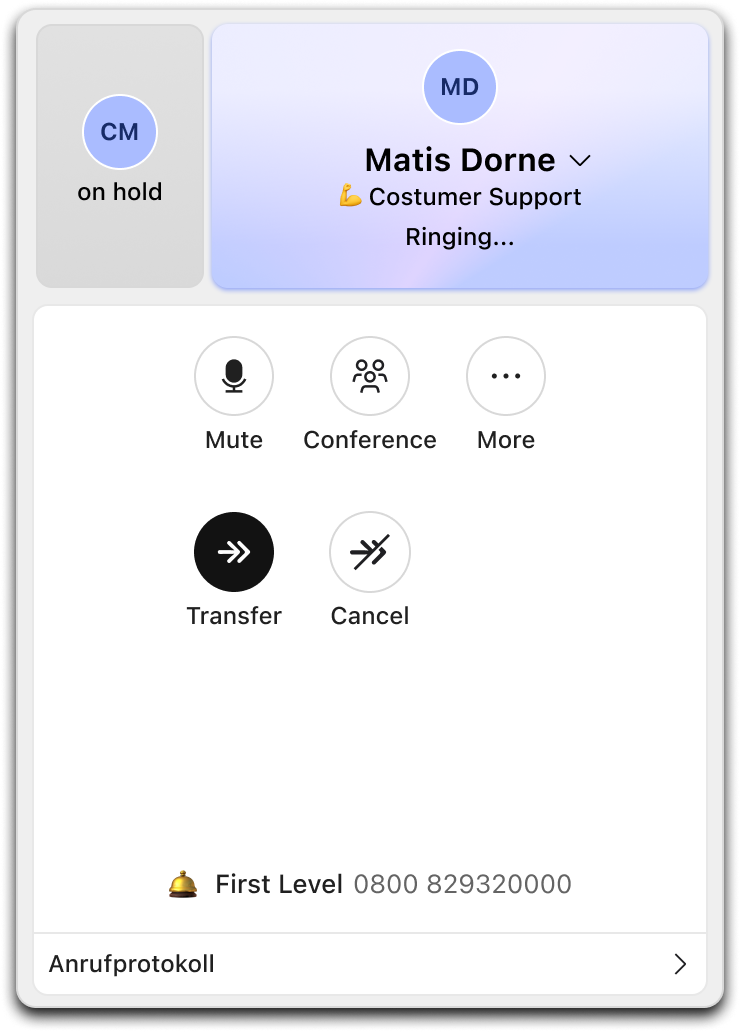
Search for a contact or enter the desired phone number. Select the transfer destination and click on **Start transfer**.

The sipgate app is now calling the transfer destination. The current participant is put on hold in the meantime.
In the participant tile, you can see both participants in the call. The app shows you who you are currently talking to and who is on hold. Click on the other person to switch between the calls.
Switch between the two participants
As soon as the transfer destination has answered the call, you can briefly explain the matter. Afterwards, you have the following options:
* **Transfer:** Connects both participants and ends your own call.
* **Conference:** Connects all three people in a shared conference.
* **Cancel:** Ends the transfer and returns to the original call.
You can find more call functions under **More**.
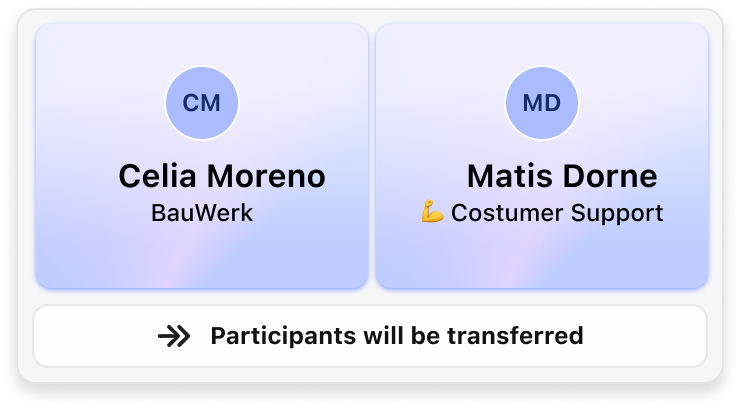
After a successful transfer, the two participants are connected. A short confirmation is shown.
Successful transfer
{% hint style="info" %}
A conference is currently possible with a maximum of three people.
{% endhint %}
{% endtab %}
{% endtabs %}
#### **Start a three-way conference on an iPhone or Android**
In the sipgate app, you can easily create a conference with three people. During a call, open the keypad and enter either \*3 followed by a speed dial or \*3 followed by a phone number. Confirm the transfer with # (\*3speed dial# or \*3phone number#). As soon as the call is answered, press \*5 to start the conference.
#### **Call transfer on an iPhone / Android**
The procedures on both operating systems (iOS/Android) are identical. Below, the call transfer is shown using an iPhone as an example.
Answer an incoming call and click the button **Add**.

In the next step, enter a name from your contacts or a phone number in the search bar. The sipgate app now calls the new number while the caller is on hold. When the target number answers the call, you can briefly explain the matter.
You can switch between the calls by clicking the held call (gray).

To connect the callers, go to the button **Connect and leave**.

{% hint style="info" %}
**Tip:** Alternatively, you can use the keyboard shortcuts in the sipgate app, which you can find in[ this article ](https://help.sipgate.de/hc/de/articles/14385329985309-Welche-Tastaturk%C3%BCrzel-kann-ich-in-der-sipgate-App-CLINQ-verwenden)find.
{% endhint %}
---
# Agent Instructions
This documentation is published with GitBook. GitBook is the documentation platform designed so that both humans and AI agents can read, navigate, and reason over technical content effectively. Learn more at gitbook.com.
## Querying This Documentation
If you need additional information that is not directly available in this page, you can query the documentation dynamically by asking a question.
Perform an HTTP GET request on the current page URL with the `ask` query parameter, and the optional `goal` query parameter:
```
GET https://help.sipgate.de/cloud-telefonanlage/en/using-sipgate/die-sipgate-app/wie-kann-ich-mit-der-sipgate-app-anrufe-weiterleitentransferieren.md?ask=&goal=
```
`ask` is the immediate question: it should be specific, self-contained, and written in natural language.
`goal` is optional and describes the broader end goal you are ultimately trying to accomplish on behalf of the user. GitBook uses it to tailor the answer towards what is most useful for that goal.
The response will contain a direct answer to the question and relevant excerpts and sources from the documentation.
Use this mechanism when the answer is not explicitly present in the current page, you need clarification or additional context, or you want to retrieve related documentation sections.